







Sent an email to the wrong person, forgot an attachment, or noticed a serious mistake after clicking Send? How to recall an email in Outlook depends mainly on your account type, Outlook version, and whether the recipient has already opened the message.
Microsoft’s current Outlook guidance says message recall is available for eligible Microsoft 365 work or school accounts when the sender and recipient belong to the same organization. Personal Outlook.com, Hotmail, Live, and MSN accounts cannot use message recall.
The good news is that if your account supports recall, you can usually remove an unread message from the recipient’s mailbox or replace it with a corrected version.
How to Recall an Email in Outlook
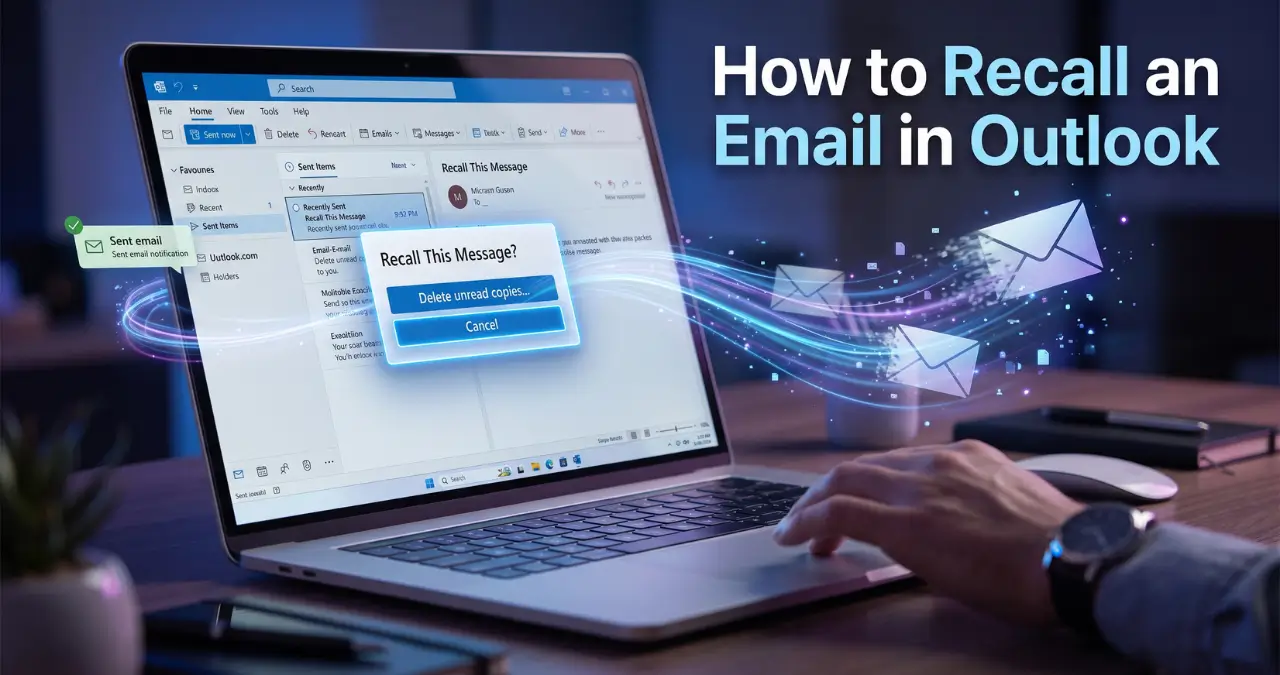
To recall an email in Outlook, open the message from Sent Items and use the Recall Message option. In new Outlook and Outlook on the web, open the sent message, choose Recall Message, and confirm. Microsoft then sends a recall report showing whether the request succeeded, is pending, or failed.
Recall an email in new Outlook
Follow these steps:
- Open Outlook.
- Go to Sent Items.
- Double-click the email you want to recall so it opens in its own window.
- Select Recall Message from the message toolbar.
- Confirm the recall.
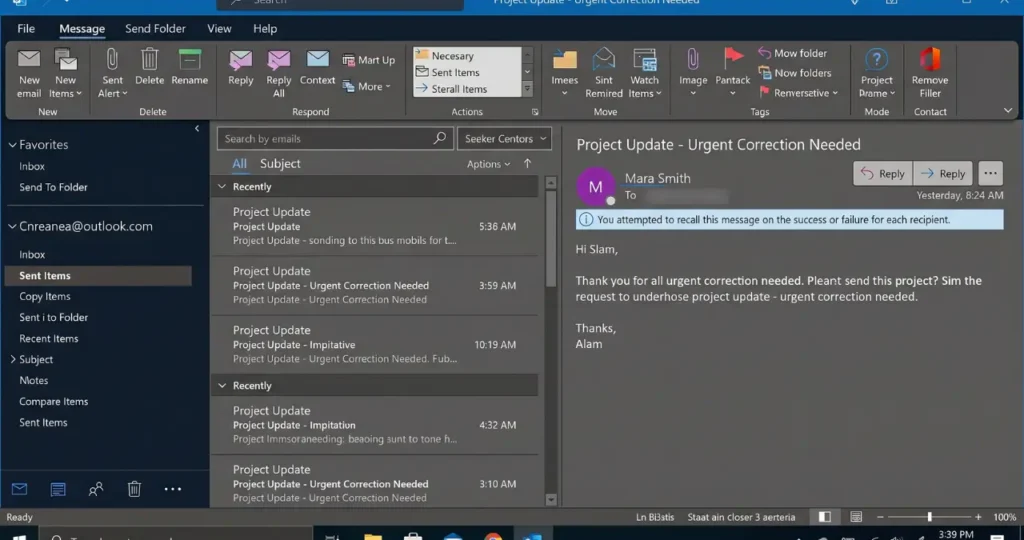
- Check your inbox for the Message Recall Report.
The report tells you whether the recall succeeded, is still pending, or failed.
If you want to correct the original email, Outlook can also let you send a replacement message. This is particularly useful when you forgot an attachment or included incorrect information.
How to recall an email in Outlook on the web
Outlook on the web can support message recall when the account and recipient meet Microsoft’s requirements. Open Sent Items, double-click the message, select Recall Message, and confirm the action.
This is different from using a personal Outlook.com account in a browser. Microsoft specifically says message recall isn’t available for personal addresses ending in @outlook.com, @hotmail.com, @live.com, or @msn.com.
How to recall an email in classic Outlook
Classic Outlook uses a slightly different menu path. Open the sent message, then choose Recall This Message from the message actions and select whether you want to delete unread copies or delete them and replace the email.
To recall a message:
- Open Sent Items.
- Double-click the email.
- Open the Message tab.
- Choose More Move Actions or More commands (…), depending on your ribbon layout.
- Select Recall This Message.
- Choose Delete unread copies of this message.
- Alternatively, choose Delete unread copies and replace with a new message.
- Select OK.
If you choose the replacement option, Outlook opens the original message for editing. After making your corrections, send it again.
When Does Outlook Email Recall Actually Work?
Outlook recall is not a universal “unsend” button. It works only under specific Microsoft 365 or Exchange conditions, and the recipient generally must not have opened the message yet.
The key requirements are:
- You and the recipient use Microsoft 365 work or school email accounts.
- Both accounts belong to the same organization.
- The message has not been opened by the recipient.
- Your organization’s email system supports the recall feature.
Microsoft also notes that MAPI and POP accounts do not support recall.
This explains why someone can successfully recall an email sent to a colleague at their company but cannot necessarily recall a message sent to a personal Gmail address.
Can you recall an email after it has been read?
Normally, no. Outlook’s message recall retrieves the message from recipient mailboxes when the recipients have not yet opened it. If the recipient has already read the email, you should not rely on recall to remove it.
This is one of the most important limitations to understand.
If the email contains sensitive information and recall fails, contact the recipient directly and ask them to disregard or delete the message. If the message involves confidential company information, follow your organization’s security or incident-reporting procedure.
Can You Recall an Email Sent to Gmail?
No, Outlook’s message recall does not let you remotely remove an email from a Gmail recipient’s inbox. Microsoft’s current requirements limit recall to eligible Microsoft 365 work or school accounts within the same organization.
For example:
| Situation | Outlook recall |
|---|---|
| Microsoft 365 work → same organization | Usually available if unread |
| Microsoft 365 school → same organization | Usually available if unread |
| Outlook.com → Gmail | Not available |
| Outlook.com → personal Outlook.com | Not available |
| Outlook → external company | Not supported for standard recall |
| Gmail → Outlook | Outlook recall does not apply |
The important distinction is organization, not simply whether both people use Outlook.
What If “Recall Message” Is Missing?
If you cannot find the recall option, your account or message may not meet the requirements. A missing recall command can indicate that you’re using an unsupported account type or that your organization doesn’t provide the feature.
First, confirm that you’re opening the message from Sent Items rather than simply selecting it in the reading pane. Classic Outlook requires the message to be opened in its own window for recall.
Then check the account type.
If you are using a personal @outlook.com, @hotmail.com, @live.com, or @msn.com address, you cannot use message recall.
Another possibility is that your organization uses an account configuration that doesn’t support recall. Microsoft also states that MAPI or POP accounts don’t support the feature.
How to Recall an Email in Outlook on Mac
Outlook for Mac has message recall support, but availability still depends on the account and organizational requirements. Microsoft lists Outlook 2024 for Mac and Outlook 2021 for Mac among the supported products for its recall guidance.
If you’re using Outlook for Mac and don’t see a recall command, check that you’re using an eligible Microsoft 365 or Exchange-based work or school account and that the recipient is within the same organization.
The exact menu can vary between Outlook versions, so it is better to look for Recall Message or the equivalent message-action option rather than relying on an older Windows-only menu path.
Can You Recall an Email From Outlook Mobile?
No. Microsoft currently says Outlook for Android and iOS do not support undoing or recalling an already-sent email. The Outlook mobile apps do not currently provide the same sent-message recall function available in supported desktop and web scenarios.
If you accidentally send an email from your phone, your practical options are to contact the recipient, send a correction, or use an available organizational process for sensitive information.
This is an important distinction because instructions written for desktop Outlook may not apply to the mobile app.
What Is the Difference Between Recall and Undo Send?
Recall happens after an email has been sent and depends on recipient and account conditions. Undo Send works by delaying the actual sending of the message, giving you a short window to cancel it. For personal Outlook.com accounts, Microsoft recommends using the available Undo Send delay rather than message recall.
Think of the two features this way:
- Recall: Try to retrieve a message that has already been delivered.
- Undo Send: Keep the message from being sent immediately.
- Replacement: Recall an eligible unread message and send a corrected version.
For personal email, a sending delay is generally more useful because it doesn’t depend on the recipient being in the same organization.
What Should You Do If Outlook Recall Fails?
If recall fails, don’t assume the recipient never saw the email. Check the Message Recall Report, then choose the appropriate next step based on what you sent and who received it.
For an ordinary mistake, send a short correction. For example, if you forgot an attachment, you can simply explain that the previous email was incomplete and attach the correct file.
If you sent confidential information, credentials, financial information, or sensitive company material, don’t rely on an email recall alone. Notify the appropriate person or security team and follow the relevant internal procedure.
Microsoft’s recall system provides status information through the recall report, so use that report instead of guessing whether the operation worked.
How Long Does Outlook Recall Take?
Recall results are usually reported quickly, but Microsoft says processing can sometimes take longer. A recall request may be retried for up to 24 hours if it cannot immediately execute because, for example, a recipient mailbox is temporarily unavailable.
For normal situations, watch for the Message Recall Report in your inbox.
Don’t interpret the absence of an immediate report as proof that the recall failed. The report is the better source for the actual status.
How to Avoid Needing Email Recall
The safest approach is to prevent accidental sends rather than depend on recall. Add a short delay before sending important messages, review recipients and attachments, and double-check the message before clicking Send.
Before sending an important email, check:
- To: Is every recipient correct?
- Cc/Bcc: Did you accidentally include someone?
- Subject: Does it accurately describe the email?
- Attachment: Did you attach the correct file?
- Links: Do they open the intended destination?
- Content: Are names, dates, prices, and other details correct?
- Confidentiality: Should everyone listed actually receive this information?
A 10-second review can prevent a much bigger problem than an attempted recall.
How to Recall an Email in Outlook: Quick Summary
The quickest method is to open the sent email and choose Recall Message, but the feature only works under Microsoft’s supported conditions. You generally need a Microsoft 365 work or school account, the recipient must be in the same organization, and the message must still be unread.
If you use a personal Outlook.com, Hotmail, Live, or MSN address, message recall isn’t available. If you’re on Android or iPhone, Microsoft also currently does not provide sent-message recall in the Outlook mobile apps.
When recall isn’t possible, send a correction or contact the recipient directly. For future emails, a send delay can provide a safer window to catch mistakes before a message actually leaves your mailbox.
Frequently Asked Questions
1. Can I recall an email in Outlook after sending it?
Yes, but only when your account and the recipient meet Microsoft’s recall requirements. For supported Microsoft 365 work or school accounts, the recipient generally must be in the same organization and must not have opened the message.
2. Can I recall an Outlook email sent to Gmail?
No. Outlook’s message recall is not designed to retrieve a message from an external Gmail mailbox. The supported recall scenario requires both users to have eligible Microsoft 365 work or school accounts in the same organization.
3. Can I recall an email after the recipient reads it?
You should not expect recall to work after the recipient has opened the email. Microsoft describes recall as retrieving messages from recipients who have not yet opened them.
4. Why can’t I see “Recall This Message” in Outlook?
Your account may not support recall, or you may be using a version or account configuration where the feature isn’t available. Check that you’re using an eligible Microsoft 365 or Exchange account and that you opened the sent message correctly.
5. Can I recall an email from Outlook on my phone?
No, not currently through Outlook for Android or iOS. Microsoft says the mobile apps do not currently support undoing or recalling an already-sent email.
6. Can I replace an email after recalling it?
Yes, when your Outlook recall scenario supports replacement. You can choose the option to delete unread copies and replace the original message with a corrected version.
7. Does deleting an email from Sent Items recall it?
No. Deleting your copy from Sent Items does not remotely delete the recipient’s copy. Recall is a separate function that attempts to retrieve an eligible message from the recipient’s mailbox.
8. How do I know whether my Outlook recall worked?
Look for the Message Recall Report in your inbox. Microsoft says the report indicates whether the recall succeeded, is pending, or failed.
9. Is Outlook recall the same as Gmail’s undo send?
No. Outlook recall attempts to retrieve an already-sent message under specific conditions, while an undo-send delay gives you a short opportunity to cancel a message before it is actually sent.
10. What should I do if an Outlook recall fails?
Send a correction or contact the recipient, depending on the seriousness of the mistake. For confidential or security-sensitive information, notify the appropriate organization or security team rather than relying on the recall feature alone.