






If you want to know how to change PayPal password, you can do it through PayPal’s website in just a few steps. PayPal currently says password changes are not available through its mobile app, so you’ll need to use a web browser.
Changing your password is especially important if you think someone knows it, you notice suspicious activity, or you’ve recently dealt with malware or a security issue. PayPal also recommends using a unique password rather than reusing one from another account.
This guide explains the current process for changing or resetting a PayPal password, including what to do if you forgot your password or cannot log in.
How to Change PayPal Password on the Website
The simplest way to change your PayPal password is through your account’s Security settings. You need to know your current password because PayPal asks you to confirm it before setting a new one.
Follow these steps:
- Open a web browser and go to PayPal.
- Sign in to your PayPal account.
- Open Settings.
- Select the Security tab.
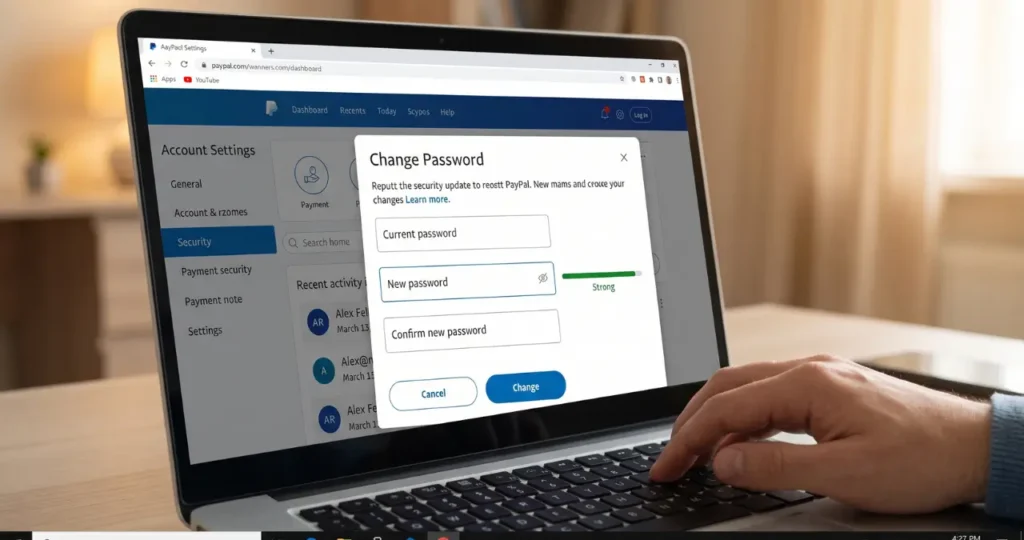
- Find Password and click Update.
- Enter your current password.
- Enter your new password twice.
- Select Change Password to save it.
The exact appearance of PayPal’s settings can change as its website is updated, but the current PayPal Help Center identifies Settings → Security → Password → Update as the password-change route.
Can You Change Your PayPal Password in the App?
Currently, PayPal says you cannot change your password through the PayPal mobile app. Instead, use PayPal through a web browser and access the Security settings there.
This is different from resetting a forgotten password. PayPal provides a password-recovery process through its login page, and its help documentation also describes password recovery within the app in certain circumstances.
How to Reset a Forgotten PayPal Password
If you don’t remember your current password, you don’t need to know the old password to start the recovery process. PayPal provides a Forgot password? option on its login page that guides you through a security check before allowing you to create a new password.
Here’s how to reset it:
- Go to the PayPal login page.
- Select Forgot password?
- Enter the email address associated with your PayPal account.
- Select Next.
- Choose an available method to complete the security check.
- Complete the verification process.
- Create your new password.
PayPal’s recovery process may vary depending on the information available on your account and the security checks presented to you. The important distinction is that changing a password normally starts from your account settings, while resetting a forgotten password starts from the login page.
What If You Forgot Your PayPal Email Address?
If you don’t remember which email address you used for PayPal, there is a separate recovery option.
PayPal says you can select Forgot your email? from the login process and enter up to three email addresses you may have used with your account. If PayPal identifies one, you can use it to continue the login or password-recovery process.
This can be useful if you have multiple personal or business email addresses and aren’t sure which one is connected to your PayPal account.
How to Create a Strong PayPal Password
A strong PayPal password should be unique, difficult to guess, and different from passwords you use elsewhere. PayPal recommends longer passwords and suggests using a passphrase made from three or more words.
Avoid passwords based on information that someone could easily discover, such as:
- Your birthday
- Your name
- A family member’s name
- A pet’s name
- Your phone number
- Common words
- A password you’ve already used on another website
For example, instead of creating a password based on your name and birth year, use a unique combination of unrelated words, numbers, and symbols.
A password manager can also help you create and store unique passwords for PayPal and other accounts. PayPal specifically recommends password managers as an option for managing different passwords across devices.
How Long Should a PayPal Password Be?
PayPal’s security guidance recommends a password of at least 12 characters as a strong target. Some PayPal help documentation also specifies account password requirements such as 8–20 characters with at least one number or symbol, so follow the requirements PayPal displays when you create your password.
The most important principle is not simply making a password complicated. Make it unique, so a password stolen from another service cannot be used to access your PayPal account.
What to Do After Changing Your PayPal Password
Changing your password is an important security step, but it should not be the only one if you suspect your account has been compromised. Check your account for anything you don’t recognize and strengthen your other security settings.
PayPal recommends enabling two-step verification when available. With 2FA enabled, signing in requires your password plus another verification method, adding another barrier against unauthorized access.
PayPal’s current security guidance describes enabling 2FA through Settings → Security → Set Up under two-step verification. Available verification options can depend on the account and region.
You should also:
- Review recent account activity.
- Check for unfamiliar payments or transactions.
- Make sure your email account is secure.
- Avoid reusing your new PayPal password elsewhere.
- Keep your browser and operating system updated.
- Consider using a reputable password manager.
If you discover unauthorized transactions, don’t assume changing your password alone resolves the problem. Use PayPal’s account-security and dispute/help processes to address the specific activity.
When Should You Change Your PayPal Password?
You should change your PayPal password immediately when you believe it may have been exposed or compromised. PayPal specifically identifies suspicious account activity, suspected password theft, suspicious activity on other accounts, malware removal, and certain PayPal security notices as situations where changing the password is appropriate.
For example, consider changing it if:
- You shared your password with someone.
- You used the same password on another website that experienced a breach.
- You clicked a suspicious link and entered your PayPal credentials.
- You notice an unfamiliar login or transaction.
- Your computer or phone was infected with malware.
- PayPal tells you to change your password because of unusual activity.
You don’t need to wait until something goes wrong. Maintaining a unique password and strong account security is generally more useful than repeatedly changing the same weak password.
Be Careful With PayPal Password Reset Emails
One of the most important parts of changing your password is making sure you’re actually using PayPal. Fake password-reset emails and text messages can attempt to trick you into entering your PayPal credentials on a fraudulent website.
PayPal advises users not to click suspicious password-reset links in messages. Instead, open a new browser window and manually go to PayPal’s website before signing in or changing your password.
PayPal also says it will never ask you for your password. It warns users not to share password-reset codes with anyone, including someone claiming to be from PayPal.
A simple rule is:
Don’t change your PayPal password from a link in an unexpected email or text. Open PayPal directly instead.
This reduces the chance of accidentally entering your credentials into a phishing website.
Change vs. Reset: What’s the Difference?
The difference between changing and resetting your PayPal password is mainly whether you can currently access your account and remember your existing password.
| Situation | What to do |
|---|---|
| You know your current password | Change it through Settings |
| You forgot your password | Select Forgot password? |
| You forgot your PayPal email | Use Forgot your email? |
| You suspect someone knows your password | Change it immediately |
| You received a suspicious reset message | Don’t click it; access PayPal directly |
| You want stronger security | Use a unique password and enable 2FA |
If you’re already signed in and know your current password, changing it through Settings → Security is the straightforward option. If you’re locked out because you don’t remember the password, use PayPal’s recovery process instead.
What If You Can’t Change Your PayPal Password?
If the password-change option isn’t working, first make sure you’re using PayPal’s website rather than trying to change the password inside the mobile app. PayPal currently directs users to the website for changing an existing password.
If you can’t log in at all, use the Forgot password? recovery option instead of trying to change the password from inside the account.
You can also try basic troubleshooting:
- Confirm that you’re using the correct PayPal email address.
- Open PayPal in another supported browser.
- Clear your browser’s cache and cookies if the login page behaves unexpectedly.
- Try the password-recovery process again.
- Use PayPal’s official Help Center if you still cannot access the account.
PayPal notes that clearing browser cache and cookies can sometimes help with login problems.
Avoid repeatedly guessing passwords. If you don’t know the correct password, recovery is safer and more efficient than continuing to attempt different combinations.
Frequently Asked Questions
Can I change my PayPal password from my phone?
You can use your phone’s web browser to change the password through PayPal’s website. However, PayPal currently says changing an existing password isn’t available directly through the PayPal app.
How do I change my PayPal password if I forgot the old one?
You cannot change it through the normal account settings without confirming your existing password. Instead, go to the PayPal login page and select Forgot password? to begin the recovery process.
How often should I change my PayPal password?
There isn’t a need to repeatedly change a strong, unique password simply because time has passed. However, PayPal recommends changing your password when you notice suspicious activity, suspect someone has it, encounter security issues, remove malware, or receive a legitimate PayPal security request.
Why can’t I see my PayPal password?
PayPal does not display your existing password for security reasons. If you don’t know it, PayPal recommends creating a new one through the password-reset process.
Does changing my PayPal password log me out?
PayPal’s current help documentation focuses on the password update process and does not guarantee a particular sign-out behavior across every device or session. If you’re changing your password because you suspect unauthorized access, review your account security afterward and enable additional protection such as 2FA.
Can I use my old PayPal password again?
It’s better to create a genuinely new password rather than reuse an old one. PayPal recommends unique passwords because reusing credentials across services can allow a compromised password to expose multiple accounts.
What should I do if someone knows my PayPal password?
Change your password immediately through PayPal’s website and enable two-step verification if available. You should also review your account for suspicious activity and secure your email account because access to your email can affect account recovery.
Is it safe to reset my PayPal password from an email?
Don’t automatically trust an unexpected password-reset email. PayPal advises opening a new browser window and going directly to PayPal instead of clicking suspicious reset links.
What if I forgot the email address connected to PayPal?
Start the PayPal login recovery process and choose Forgot your email? PayPal says you can enter up to three email addresses you may have used with the account.
How can I make my PayPal account more secure?
Use a unique, long password, avoid sharing it, consider using a password manager, and enable two-step verification when available. PayPal also recommends being cautious with suspicious messages and never sharing password-reset codes.