





Google Docs has a small set of free, built-in cover letter templates hidden inside its template gallery. If you’re searching for a cover letter template google docs option, you don’t need to download anything or sign up for a third-party site — Google already includes a handful of editable designs under the “Letters” section.
This guide covers exactly where to find them, what each one looks like, whether they’re safe to use with applicant tracking systems, and how to turn any of them into a reusable template of your own.
Where to Find a Cover Letter Template in Google Docs
Google keeps its cover letter templates inside the Template Gallery, which you can open from the Google Docs homepage or through Google Drive. Go to docs.google.com, click “Template gallery” in the top-right corner, then scroll down to the section labeled “Letters.”
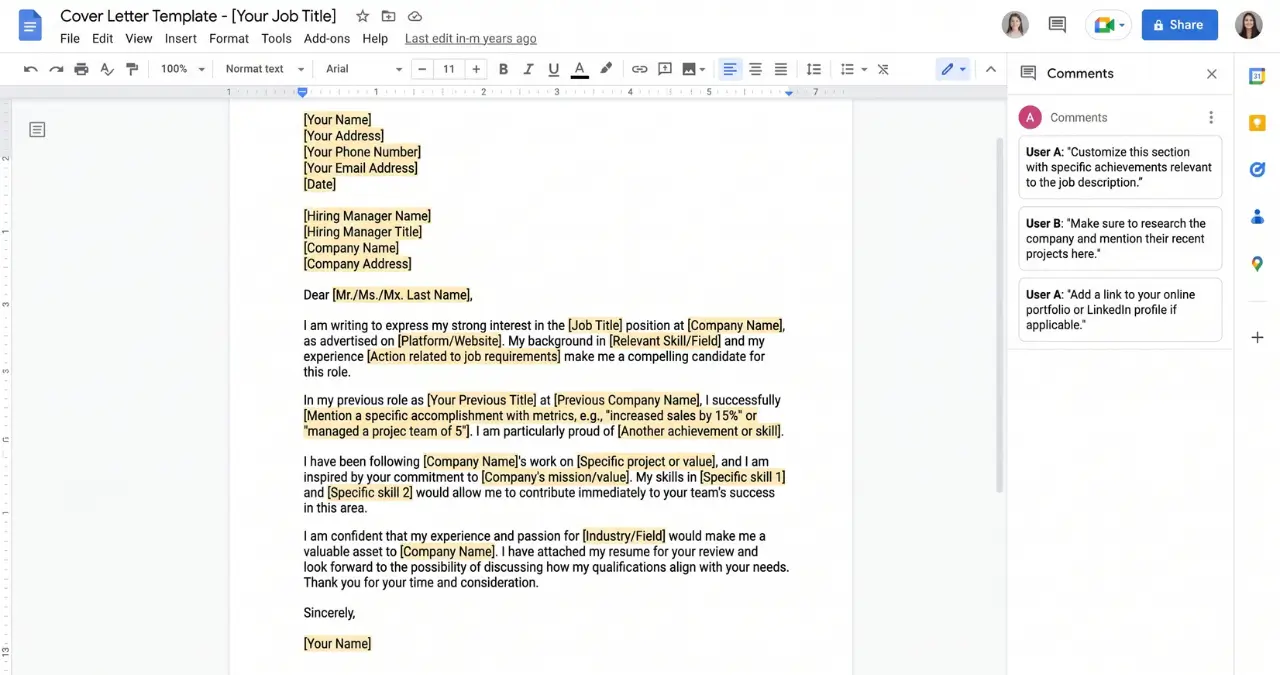
Google doesn’t market these specifically as “cover letter” templates. They sit within a broader letters category, but their layout, a header block, greeting, body paragraphs, and sign-off, follows standard cover letter structure and works fine for job applications.
If you’re starting from Google Drive instead, click “New,” hover over Google Docs, and select “From a template” rather than “Blank document.” Both routes land you in the same gallery.
What Cover Letter Templates Does Google Docs Actually Offer?
Google Docs typically offers somewhere between four and six built-in letter templates that work as cover letters, including designs named Spearmint, Swiss, Geometric, Modern Writer, Coral, and Serif. The exact number and names can vary slightly depending on your account type and region, so don’t be surprised if your gallery looks a little different from a screenshot you saw elsewhere.
Spearmint is a clean, minimal layout with a thin accent line, generally considered one of the safest choices for conservative industries like finance or government. Swiss uses a more structured, two-column feel. Geometric adds blocky visual accents that suit design or tech-adjacent roles. Modern Writer and Serif lean more traditional, with classic typography suited to formal applications.
If your Google account is managed through a school or employer (a Google Workspace account), your administrator may have restricted or customized which templates appear, so a personal Gmail account sometimes shows a fuller gallery.
How to Access a Cover Letter Template in Google Docs, Step by Step
Getting from a blank screen to an editable cover letter template takes under a minute. Sign in to your Google account first, since the gallery won’t display properly until you’re logged in.
- Go to docs.google.com and make sure you’re signed in.
- Click “Template gallery” near the top-right of the homepage.
- Scroll to the “Letters” section of the gallery.
- Click the template you want. It opens as a new, editable document automatically saved to your Drive.
- Replace the placeholder text with your own contact details, greeting, and letter content.
Once you’re done editing, go to File, then Download, to export as a PDF or Word document, or leave it as a Google Doc if you plan to share it as a link.
Are Google Docs Cover Letter Templates ATS-Friendly?
Yes, Google’s built-in cover letter templates are generally safe for applicant tracking systems because they avoid the layout elements that most commonly break automated parsing. None of them use multi-column text, embedded text boxes, or decorative graphics layered over the text itself.
That said, “generally safe” isn’t the same as guaranteed. A few practical habits make a real difference: stick to a single-column layout, use a standard font like Arial, Calibri, or Georgia, and avoid placing your contact information inside a header or footer, since some ATS parsers skip that content entirely. Export as a PDF unless the job posting specifically asks for a Word file, since PDFs preserve formatting more reliably across different systems.
Templates like Spearmint, Modern Writer, and Serif tend to be the safest built-in choices specifically because they’re visually simple. Anything with heavy color blocking or icon-based section dividers carries slightly more ATS risk, even within Google’s own limited gallery.
How to Customize a Google Docs Cover Letter Template
Customizing a Google Docs cover letter template means replacing every piece of placeholder text and adjusting formatting only where it genuinely improves readability. Start with the header, your name, address, phone number, and email, then move through the date, greeting, body paragraphs, and closing signature.
Resist the urge to over-design. These templates already handle margins, font pairing, and spacing correctly, so the main risk is accidentally breaking that structure while personalizing the content. If you delete a section entirely (many people skip the mailing address block for digital applications), check that the remaining spacing still looks balanced rather than leaving an awkward gap.
One practical issue several career-advice sites have flagged: once you write a full introduction, a couple of accomplishment-focused body paragraphs, and a closing call to action, some of these templates run tight on space and spill onto a second page. If that happens, trim your content before shrinking the font size — a cover letter that’s slightly under one page reads better than one page stretched thin with an 9-point font.
Google Docs vs. Word vs. Canva for Cover Letter Templates
Google Docs is the fastest option for a clean, ATS-safe cover letter, while Word offers a similar built-in gallery with less real-time collaboration, and Canva provides far more visual variety at the cost of higher ATS risk. Which one makes sense depends mostly on the type of role you’re applying for.
For corporate, government, finance, or any role likely to route through an applicant tracking system, Google Docs’ plain templates are a genuinely strong choice, not just a free fallback. Word’s built-in templates are comparable in simplicity but require desktop software or a Microsoft 365 subscription for full functionality, whereas Google Docs works entirely in the browser and autosaves to Drive as you type.
Canva sits at the other end of the spectrum. It offers dramatically more design variety, colors, icons, custom layouts, which suits creative fields like design, marketing, or media where visual presentation is part of the pitch. That same visual richness is exactly what makes Canva templates riskier for ATS-heavy applications, since parsers can misread text embedded in graphic elements.
How to Save a Custom Cover Letter Template Google Docs
You can turn any Google Doc into a reusable cover letter template google docs setup by building your preferred version once and duplicating it for each new application instead of starting over. Google Docs doesn’t have a formal “save as template” button for personal accounts the way Workspace admins can for organization-wide templates, but the workaround is simple and reliable.
Build your ideal cover letter layout, fonts, spacing, header formatting, once. Then, instead of editing that master file directly, right-click it in Google Drive and select “Make a copy” before each new application. Rename the copy immediately, something like “Cover Letter – Marketing Manager – Acme Corp,” so your Drive stays organized as you apply to multiple roles.
This approach gives you more control than Google’s built-in gallery, since the base template reflects your actual formatting preferences rather than one of Google’s stock designs, while still keeping the whole process inside Google Docs.
Common Mistakes to Avoid When Using a Template
The most common mistake is leaving placeholder text or bracketed instructions behind after editing, which happens more often than you’d expect when working quickly through a template. Read through the entire document one final time before exporting, specifically checking for anything that still says “[Company Name]” or “[Your Address Here].”
A second frequent issue is using the same generic version for every application. A template should speed up formatting, not replace the actual customization a strong cover letter needs, like referencing the specific role, company, and why you’re a fit. Templates handle structure; they can’t write your actual argument for you.
Finally, watch file naming and sharing settings. If you’re submitting a Google Docs link rather than a downloaded file, double-check the sharing permissions are set to “Anyone with the link can view,” not edit, before you send it to a hiring manager.
Frequently Asked Questions
Does Google Docs have free cover letter templates?
Yes. Google Docs includes a small built-in selection of letter templates, typically four to six designs, accessible through the Template Gallery under the “Letters” section.
How do I find a cover letter template in Google Docs?
Go to docs.google.com, click “Template gallery” in the top-right corner, and scroll to the “Letters” section to see the available options.
Are Google Docs cover letter templates ATS-friendly?
Generally yes, since they avoid multi-column layouts and embedded graphics. For the safest results, use a single-column design, a standard font, and export as a PDF.
Can I edit a Google Docs cover letter template on my phone?
Yes, through the Google Docs mobile app, though browsing and selecting from the full Template Gallery is easier on a desktop browser.
What’s the best Google Docs cover letter template for corporate jobs?
Simpler, more traditional designs like Spearmint, Modern Writer, or Serif tend to work best for finance, consulting, government, and other formal industries.
Can I save my own custom cover letter as a reusable template?
Yes. Build your preferred version once, then use “Make a copy” in Google Drive before each new application instead of editing the original file directly.
Is Google Docs better than Canva for a cover letter?
For ATS-heavy applications, Google Docs is generally safer due to its simpler formatting. Canva offers more visual design options, which suits creative fields but carries more ATS risk.
Do I need a Google account to use these templates?
Yes, you need to be signed in to a Google account to access and edit templates from the gallery.
How do I download my finished cover letter as a PDF?
Open the File menu, hover over Download, and select PDF Document. This preserves formatting more reliably than sharing the editable Google Doc link.
Why can’t I find the Letters section in my Template Gallery?
If you’re using a Google Workspace account through a school or employer, an administrator may have limited which templates appear. Try accessing the gallery from a personal Google account instead.