








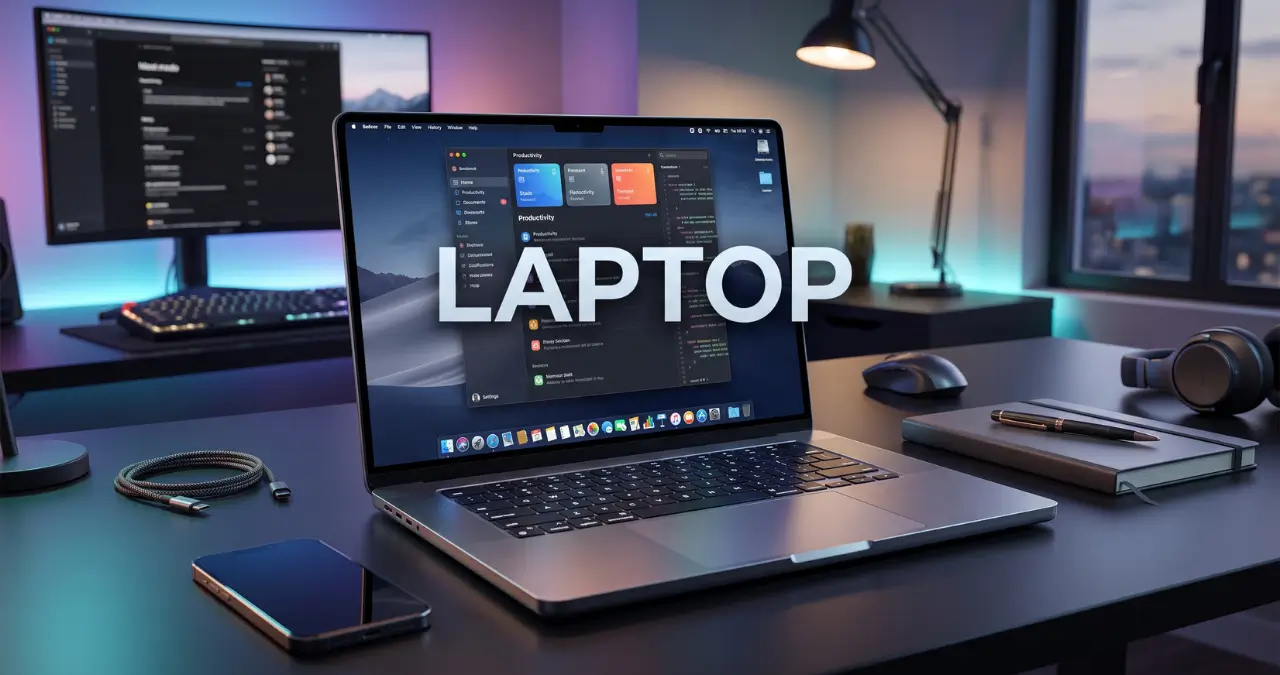
A laptop is one of the most practical computers for work, study, entertainment, and travel because it combines a screen, keyboard, battery, and computing hardware in one portable device. The right choice, however, depends less on having the most powerful specifications and more on matching the computer to your actual workload.
For basic browsing and office work, you may not need an expensive processor or dedicated graphics card. Students and remote workers often benefit more from good battery life, a comfortable keyboard, 16GB of memory, and an SSD. Gamers and creators have different priorities, including stronger graphics hardware, better cooling, and higher-performance displays.
This guide explains what to look for, which specifications matter most, and how to avoid paying for hardware you will rarely use.
How to Choose a Laptop
The best laptop for you depends on what you plan to do with it. Start with your workload, then choose the processor, memory, storage, display, graphics, battery, and connectivity that support those tasks.
Microsoft similarly recommends starting with the way you intend to use a PC rather than choosing specifications first. Its current buying guidance separates users into categories such as students, multitaskers, creators, gamers, and entertainment users.
A simple way to narrow your choice is:
| Main use | Recommended starting point |
|---|---|
| Web browsing and email | 8GB RAM, SSD, modern entry-level CPU |
| School and office work | 8–16GB RAM, 512GB SSD |
| Programming | 16GB RAM, modern mid-range CPU, 512GB+ SSD |
| Photo and video editing | 16–32GB RAM, strong CPU, suitable GPU |
| Gaming | 16GB+ RAM, dedicated GPU, high-refresh display |
| Professional creative work | 32GB+ RAM, powerful CPU/GPU, fast SSD |
These are starting points rather than strict requirements. Software, project size, operating system, and your upgrade plans can change what makes sense.
Laptop Processor: How Much CPU Power Do You Need?
The processor, or CPU, is one of the most important components because it handles calculations and helps determine how quickly applications respond. For everyday work, a modern mid-range processor is usually a better value than paying heavily for a top-tier chip you will not fully use.
Current Windows buying guidance includes processor families such as Intel Core Ultra, AMD Ryzen, and Qualcomm Snapdragon X-series options across different PC categories.
When comparing processors, don’t look only at labels such as “Core i7” or “Ryzen 7.” Processor generations and specific chip models matter. A newer mid-range processor can be a better choice than an older high-end processor.
Which CPU Is Best for Students and Office Work?
For documents, web browsing, video meetings, spreadsheets, and general multitasking, a modern entry-level or mid-range CPU is usually sufficient. Spending extra on a flagship processor makes more sense when your workload includes demanding editing, software development, virtualization, 3D work, or other sustained tasks.
Do You Need an AI PC?
Some newer Windows computers include an NPU, or neural processing unit, designed to accelerate certain artificial-intelligence workloads. Microsoft describes Copilot+ PCs as systems with NPUs capable of more than 40 trillion operations per second for supported experiences.
That does not mean every buyer needs an NPU. If your main activities are browsing, documents, streaming, and basic productivity, traditional CPU performance, memory, display quality, and battery life may matter more.
Laptop RAM: 8GB, 16GB, or 32GB?
RAM determines how much working data a computer can keep readily available for active applications. For a new laptop, 16GB is a strong target for people who regularly multitask, while 8GB can still work for lighter workloads.
Microsoft’s current buying guidance generally places everyday use around 8GB and recommends 8–16GB for many multitasking scenarios. It also suggests moving toward 16GB or more for demanding editing and gaming workloads.
Think about RAM this way:
- 8GB: Browsing, email, documents, streaming, and light productivity.
- 16GB: Better for multitasking, programming, larger spreadsheets, and moderate creative work.
- 32GB or more: Useful for professional editing, demanding development environments, virtual machines, 3D applications, and other memory-heavy workloads.
One important buying detail is upgradeability. Some thin computers have memory soldered to the motherboard, meaning you cannot add more RAM later. If the memory is not upgradeable, choosing an adequate configuration at purchase becomes more important.
Laptop Storage: SSD vs. HDD
An SSD should be the default storage choice for most modern computers because it provides much faster everyday responsiveness than traditional mechanical hard drives. Storage capacity determines how much software, media, documents, games, and other files you can keep locally.
For most buyers, 512GB SSD storage offers a useful balance. Microsoft currently recommends 512GB to 1TB for users who expect to store substantial amounts of photos, videos, and other files, while lighter cloud-focused users may need less.
A practical guide:
- 256GB SSD: Suitable for lighter use when you rely heavily on cloud storage.
- 512GB SSD: A good general-purpose choice.
- 1TB SSD: Better for games, videos, large projects, and extensive local storage.
- 2TB+: Worth considering for large creative libraries or professional workloads.
Also check whether the storage is replaceable. A removable SSD can make future upgrades easier and potentially extend the useful life of the machine.
Laptop Display: Resolution Is Not Everything
The display affects how comfortable your computer is to use, so resolution should not be the only specification you compare. Panel type, brightness, color coverage, refresh rate, aspect ratio, and viewing angles can significantly affect the experience.
Full HD, or 1920 × 1080, remains a practical resolution for many mainstream computers. Higher resolutions such as QHD and 4K can provide greater sharpness, but they may also increase power consumption and hardware demands. Microsoft identifies FHD, QHD, OLED, and 4K displays among options worth considering for entertainment-focused systems.
What Display Is Best for Gaming?
Gamers should pay attention to refresh rate as well as resolution. A 120Hz or higher panel can provide smoother motion than a standard 60Hz display when the hardware and software can take advantage of the higher refresh rate.
For gaming, prioritize the combination of GPU performance, refresh rate, response characteristics, and resolution rather than choosing the screen with the biggest number.
Is OLED Worth It?
OLED displays can offer excellent contrast and deep blacks, making them attractive for movies, photo work, and general visual quality. However, display quality varies by individual panel, so buyers should still consider brightness, color accuracy, power consumption, and the manufacturer’s specifications.
Graphics: Integrated vs. Dedicated GPU
Integrated graphics share system resources and are generally sufficient for everyday computing, video playback, office applications, and many lighter creative tasks. A dedicated GPU provides substantially more graphics-processing capability and becomes important for demanding games, 3D applications, and certain video-production workflows.
For a normal student or office user, spending heavily on a dedicated graphics processor can be unnecessary. For gaming, however, the GPU often has a much larger impact on performance than upgrading from one high-end CPU to another.
This is one of the most useful ways to save money: buy graphics power according to the software you actually use, not according to the appearance of the specification sheet.
Battery Life and Portability
Battery life matters most when you regularly work away from a desk. Manufacturer battery figures can vary from real-world results because brightness, applications, wireless connections, processor workload, and power settings all affect runtime.
Weight and size also deserve attention. A 14-inch model can provide a useful balance between portability and workspace, while larger 15- or 16-inch computers may offer more screen area and room for stronger cooling systems.
Microsoft’s current guidance emphasizes mobility, battery life, comfort, and the user’s environment when deciding between computer types.
If you travel frequently, don’t automatically choose the most powerful model. A lighter computer with efficient hardware and strong battery performance may be more useful than a heavier performance machine that spends most of its life connected to a charger.
Ports and Connectivity to Check
A good laptop should have the connections you actually need. Depending on the model, these can include USB-C, USB-A, HDMI, an audio jack, a memory-card reader, and wireless connectivity.
USB-C deserves particular attention because its capabilities differ between models. One USB-C port may support charging and display output, while another may provide only data connectivity.
Before buying, check:
- How many USB ports are included?
- Does USB-C support charging?
- Can USB-C drive an external display?
- Is HDMI available if you need it?
- Does the computer include Wi-Fi and Bluetooth versions suitable for your needs?
- Is there a headphone jack or SD card reader if required?
Ports are easy to overlook in a specification comparison but can become frustrating after purchase.
Windows, macOS, or ChromeOS?
The operating system should match the software you need. Windows offers broad compatibility with PC applications and hardware, macOS integrates closely with Apple’s ecosystem, while ChromeOS focuses heavily on web-based applications and simpler computing.
For Windows users, current Windows 11 requirements include a compatible 64-bit processor with at least two cores, 4GB RAM, 64GB storage, UEFI Secure Boot capability, TPM 2.0, and compatible graphics hardware.
These are minimum requirements, not recommendations for a comfortable modern computer. A machine that barely meets minimum specifications can feel very different from one with substantially more memory, faster storage, and a modern processor.
Compatibility also matters. Before switching platforms, check the applications you use for work, school, development, gaming, or professional production.
How Much Should You Spend on a Laptop?
There is no single price that defines a good laptop because value depends on the workload and configuration. A cheap model can be excellent for basic work, while an expensive gaming or workstation computer may be justified for demanding applications.
Instead of setting a budget first and then searching randomly, identify your required specifications first. For example, if you need 16GB RAM and a 512GB SSD for programming, compare machines offering those features rather than choosing solely by brand.
Also consider the total package:
- Processor performance
- RAM capacity and upgradeability
- SSD capacity
- Display quality
- Battery performance
- Build quality
- Keyboard and trackpad
- Warranty and service availability
- Ports
- Repairability
A slightly more expensive model can provide better long-term value if it has a superior display, stronger build, upgradeable storage, or better battery life.
Common Laptop Buying Mistakes
The biggest mistake is buying specifications instead of buying for a workload. More cores, higher resolution, and a larger GPU do not automatically create a better experience for someone who mainly browses the web and writes documents.
Other common mistakes include:
- Choosing an old processor because its model name sounds powerful.
- Buying only 8GB when the memory cannot be upgraded and the workload is demanding.
- Choosing a tiny SSD and discovering that applications and files quickly consume the available space.
- Ignoring display brightness and panel quality.
- Assuming every USB-C port supports the same features.
- Buying a gaming computer when portability and battery life are the real priorities.
- Ignoring warranty and local repair support.
- Comparing brands instead of comparing exact configurations.
The best purchase is usually the one with the right balance rather than the highest specification in every category.
Laptop Buying Checklist
Before buying a laptop, check the exact model number and configuration rather than relying on the product family name. Two computers sold under the same series can have very different processors, displays, RAM, storage, and graphics configurations.
Use this quick checklist:
- CPU: Is it modern enough for your applications?
- RAM: 8GB for light work; 16GB is a stronger general target.
- Storage: Prefer an SSD; 512GB is a useful starting point for many users.
- Display: Check resolution, brightness, panel type, and refresh rate.
- GPU: Integrated graphics for normal work; dedicated graphics for demanding gaming and creative workloads.
- Battery: Look beyond advertised numbers and consider your actual usage.
- Ports: Confirm USB-C, USB-A, HDMI, audio, and card-reader requirements.
- Keyboard: Make sure the layout and typing experience suit you.
- Weight: Important if you carry the computer frequently.
- Upgradeability: Check whether RAM and SSD can be replaced.
- Software: Confirm that your required applications support the operating system.
- Warranty: Consider the manufacturer’s support and service options.
FAQ About Laptops
What is a good laptop for everyday use?
A good everyday computer should prioritize reliable performance, an SSD, adequate RAM, a comfortable display and keyboard, and reasonable battery life. For many users, 8–16GB RAM and a 512GB SSD provide a practical starting point.
Is 8GB RAM enough for a laptop?
8GB can be enough for web browsing, documents, email, streaming, and other light tasks. If you frequently multitask, use development tools, edit media, or play modern games, 16GB or more is generally a better target.
Is 16GB RAM enough for a laptop?
For many students, office users, programmers, and general multitaskers, 16GB is a strong balance between capability and cost. More memory becomes useful for demanding professional workloads, virtual machines, large creative projects, and certain development environments.
Is a 512GB SSD enough?
A 512GB SSD is enough for many general users, but available space is lower than the advertised capacity after the operating system and applications are installed. Gamers and creators who store large files locally may benefit from 1TB or more.
Which is better, an SSD or HDD?
An SSD is generally the better choice for a modern computer because it provides faster system startup, application loading, and file access. HDDs can still be useful for inexpensive bulk storage, particularly in external drives.
What screen size is best?
A 14-inch display often provides a useful compromise between portability and workspace. Larger 15- or 16-inch screens can be better for gaming, spreadsheets, editing, and entertainment, while smaller screens prioritize portability.
Do I need a dedicated graphics card?
Not necessarily. Integrated graphics are suitable for everyday computing and many light workloads. A dedicated GPU becomes much more important for demanding games, 3D applications, and certain professional creative workflows.
How long should a laptop last?
There is no universal lifespan because durability depends on hardware quality, workload, battery health, software support, maintenance, and repairability. A computer with adequate specifications and replaceable components can remain useful longer than an underpowered model.
Should I buy a Windows or Mac laptop?
Choose based on the software, devices, and workflow you use. Windows offers broad PC compatibility, while macOS can be particularly convenient for people already invested in Apple’s ecosystem. Check application compatibility before making the decision.
What should I check before buying a used laptop?
Check the exact processor model, RAM, SSD health and capacity, battery condition, display, keyboard, ports, charger, hinges, cooling behavior, and operating-system compatibility. Also verify that the device is not locked to another owner’s account and that the seller can provide legitimate ownership information.