








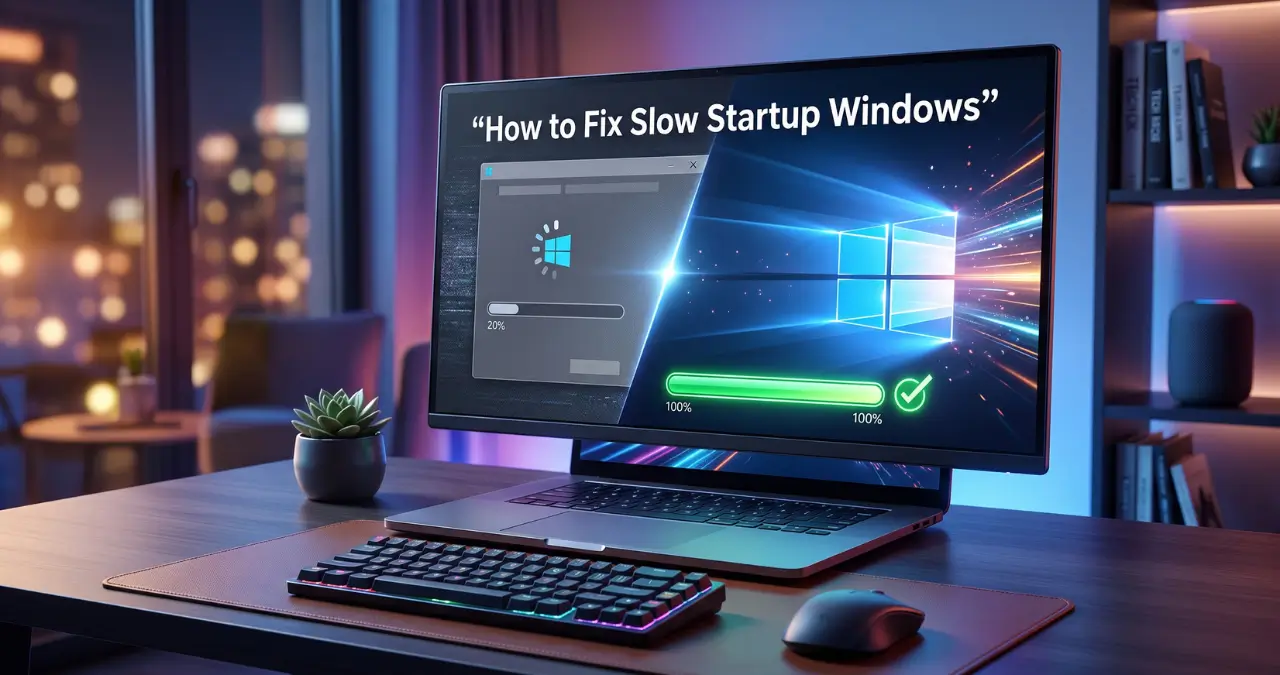
A Windows PC that takes several minutes to become usable can be frustrating, especially when it used to start quickly. If you’re wondering how to fix slow startup Windows, the cause is often related to too many startup apps, low storage, outdated software, background services, or aging hardware.
The good news is that you can diagnose many startup problems without immediately reinstalling Windows. Microsoft recommends several built-in approaches, including managing startup apps, installing updates, freeing storage, and using clean boot troubleshooting.
This guide explains the most useful fixes in a practical order, starting with the easiest changes and moving toward deeper troubleshooting.
How to Fix Slow Startup Windows by Managing Startup Apps
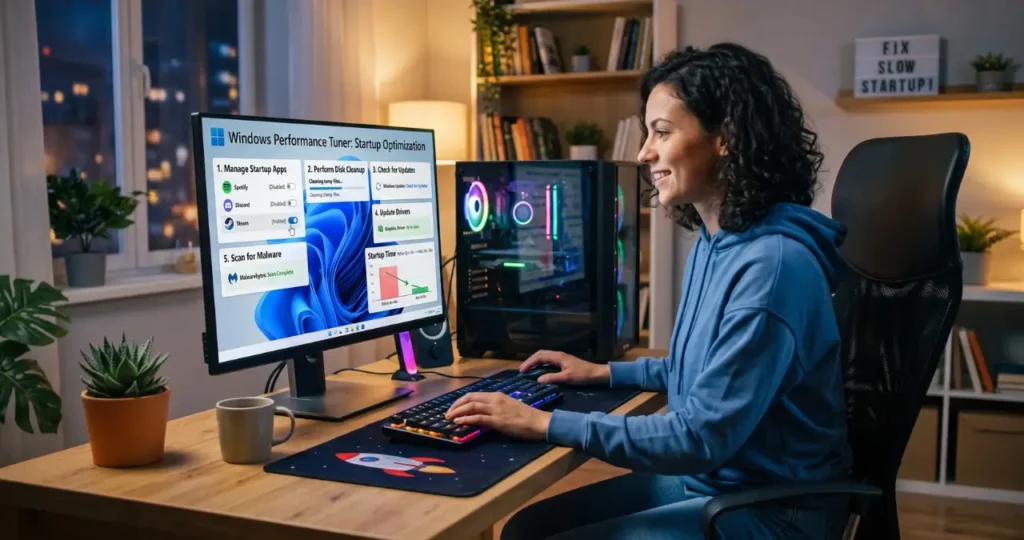
The first thing to check is which applications launch automatically when Windows starts. Disabling unnecessary startup apps can reduce the amount of software Windows has to load before the desktop becomes responsive.
Check Startup Apps in Task Manager
On Windows 11 and Windows 10, you can manage startup applications through Task Manager.
- Press Ctrl + Shift + Esc to open Task Manager.
- Select Startup apps.
- Review the applications listed as enabled.
- Look at the Startup impact column.
- Disable apps you do not need immediately after signing in.
Right-click an unnecessary application and select Disable.
Be selective. You generally should not disable security software, hardware utilities, graphics components, audio drivers, or other software whose purpose you do not understand.
For example, a music launcher, game client, cloud application, or meeting app may not need to start every time you turn on your PC. You can launch it manually when required.
Microsoft specifically identifies too many startup apps as one possible reason a Windows device may run slowly.
How to Fix Slow Startup Windows by Freeing Disk Space
Low storage can contribute to poor Windows performance and can also interfere with installing updates. Check your system drive before trying more complicated fixes.
Open Settings > System > Storage to see what is consuming space. Windows can categorize storage into areas such as installed apps, temporary files, and system files.
Use Storage Sense
Windows includes Storage Sense, which can automatically remove certain temporary files and help maintain available storage.
Go to:
Settings > System > Storage > Storage Sense
You can also review Cleanup recommendations before deleting anything.
Pay particular attention to large files in:
- Downloads
- Videos
- Pictures
- Temporary files
- Unused applications
Do not randomly delete files from Windows system folders. If you are unsure what a file does, leave it alone.
Install Windows and Driver Updates
Outdated Windows components or drivers can contribute to performance and compatibility problems. Windows updates can include fixes and performance improvements, so keeping the operating system current is an important troubleshooting step.
Go to:
Settings > Windows Update > Check for updates
Install available updates and restart the computer when prompted.
Also check whether Windows offers optional driver updates. If your slow startup began immediately after a particular driver update, however, the situation may require different troubleshooting.
One important current detail: Microsoft ended support for Windows 10 on October 14, 2025. Windows 10 PCs continue to work, but Microsoft no longer provides free software updates, technical assistance, or security fixes through normal support.
Remove Programs You No Longer Use
Unnecessary applications can consume storage and may install background services or startup components.
Open:
Settings > Apps > Installed apps
Sort through the installed programs and remove applications you no longer need.
Focus particularly on old:
- Game launchers
- Trial software
- Manufacturer utilities
- Browser extensions or companion applications
- Unused synchronization tools
- Programs you installed temporarily
Don’t uninstall a driver or system component simply because its name looks unfamiliar. Search for the application’s official documentation first if you are unsure.
Check Whether Your Antivirus or Security Software Is Causing Delays
Security software has legitimate work to perform during startup, but third-party security programs can sometimes contribute to startup delays or software conflicts.
If the slowdown appeared after installing a new antivirus, system optimizer, VPN, or security utility, temporarily investigate whether that application is involved.
Do not leave your computer without protection just to test startup speed for an extended period. Instead, use the application’s documented troubleshooting options or temporarily disable a nonessential feature only when you understand the security implications.
Windows Security itself should not be treated as unnecessary startup software simply because it appears to be part of Windows.
Check for Malware
Malware can cause unusual system behavior, excessive background activity, and performance problems. If your computer suddenly became slow rather than gradually slowing down, security checks become more important.
Run a security scan using Windows Security or another reputable security product you trust.
Look for other warning signs too:
- Unexpected pop-ups
- Unknown applications
- Browser redirects
- Unusual network activity
- Programs launching without permission
- High CPU usage when the computer is idle
If several symptoms appeared together, investigate security issues rather than simply disabling startup programs.
Restart Instead of Always Using Sleep
A normal restart can help when Windows or an application has become stuck in an unusual state.
If your computer has been running for a long time, restart it and compare the next boot with your usual startup. This is a simple diagnostic step, not a permanent fix.
If the PC remains slow after multiple clean restarts, focus on startup applications, storage, drivers, services, and hardware.
Check Whether Your Storage Drive Is the Bottleneck
The type and condition of your storage drive can make a major difference to startup responsiveness.
Modern PCs commonly use SSDs, while many older computers still have mechanical hard disk drives (HDDs). An HDD can feel dramatically slower during boot and when launching multiple applications because it has mechanical moving parts.
If your computer still uses an HDD, upgrading to a compatible SSD can be a much more meaningful improvement than installing another “PC optimizer.”
However, don’t assume the drive is automatically the problem. A PC with an SSD can still have slow startup because of dozens of startup applications or a problematic service.
A useful comparison is:
| Situation | Likely area to investigate |
|---|---|
| Slow before the Windows logo | Hardware, firmware, boot configuration |
| Windows logo appears, then long wait | Windows, drivers, services |
| Desktop appears but remains unusable | Startup apps/background processes |
| Only recently became slow | New software, driver, update, or malware |
| Entire PC remains slow after startup | Storage, RAM, CPU, overheating, or software |
This distinction can save you from changing hardware when the real problem is software.
Use a Clean Boot to Find Problematic Services
If normal startup troubleshooting does not reveal the cause, a clean boot can help identify whether a third-party service or startup program is responsible.
A clean boot starts Windows with essential drivers and startup programs while allowing you to isolate background software conflicts. Microsoft recommends this approach for troubleshooting problems caused by applications or services.
To perform a clean boot:
- Search for System Configuration or type
msconfig. - Open the Services tab.
- Select Hide all Microsoft services.
- Select Disable all.
- Open the Startup tab and select Open Task Manager.
- Disable the enabled startup items.
- Restart the PC.
If Windows starts normally much faster, a third-party service or startup application may be responsible.
Don’t permanently disable services at random. Microsoft’s clean-boot procedure is intended as a diagnostic process, and you should restore normal startup after testing.
How to Fix Slow Startup Windows When the Problem Is Hardware
If software troubleshooting doesn’t help, hardware may be limiting startup performance. Older CPUs, insufficient RAM, failing storage drives, or thermal problems can all contribute to poor overall responsiveness.
Before buying anything, check what your PC actually has.
Open Task Manager > Performance and examine:
- CPU
- Memory
- Disk
- GPU
If Disk usage repeatedly reaches 100% during startup, investigate which process is responsible rather than assuming the drive itself is defective.
If memory is nearly full immediately after startup, background applications or limited RAM may be contributing to the problem.
If an HDD is installed and the computer is otherwise old, an SSD upgrade can be one of the more substantial hardware improvements available.
Check Windows System Files if Startup Became Unstable
If startup became slow after crashes, improper shutdowns, or system changes, damaged Windows components may need investigation.
Windows includes built-in repair tools such as System File Checker (SFC) and DISM. These tools are designed to check and repair Windows components in appropriate circumstances.
Before using command-line repair commands, make sure you understand what each command does and follow Microsoft’s current documentation rather than copying random command sequences from forums.
If Windows cannot start normally, the problem is different from simply having a slow boot. Windows Recovery Environment includes tools such as Startup Repair, which can diagnose and attempt to repair certain startup problems involving damaged system files, boot configuration data, incompatible drivers, and related issues.
Use Safe Mode for Deeper Troubleshooting
Safe Mode starts Windows with a limited set of files and drivers. If the problem disappears in Safe Mode, that provides a useful clue that normal drivers, services, or startup components may be involved.
You can access Windows Recovery Environment and navigate to:
Troubleshoot > Advanced options > Startup Settings > Restart
Then select the appropriate Safe Mode option.
Safe Mode is primarily a diagnostic environment. It should not be your permanent solution for a slow computer.
What Not to Do When Fixing Slow Windows Startup
Avoid aggressive “optimization” tricks that promise instant boot times. Randomly disabling Windows services, deleting registry entries, using registry cleaners, or changing advanced boot settings can create new problems without addressing the actual cause.
You also don’t need to disable every startup program. Some applications and hardware components legitimately need to launch with Windows.
A better approach is to make one change at a time and restart the computer to see whether it actually helped. This makes troubleshooting much easier because you can identify which change affected startup performance.
A Simple Order for Fixing Slow Windows Startup
If you want the shortest practical troubleshooting path, use this order:
- Restart Windows.
- Check Task Manager > Startup apps.
- Disable unnecessary high-impact startup programs.
- Check available storage.
- Remove unnecessary applications and temporary files.
- Install Windows and appropriate driver updates.
- Run a malware/security scan.
- Check CPU, memory, and disk activity in Task Manager.
- Test with a clean boot if the cause remains unclear.
- Use Safe Mode or Windows recovery tools if startup problems continue.
- Investigate the storage drive and other hardware if software fixes fail.
This sequence starts with low-risk changes and gradually moves toward more advanced diagnostics.
Frequently Asked Questions
Why does Windows take so long to start?
Windows can start slowly because of excessive startup applications, background services, insufficient free storage, outdated software, malware, slow storage hardware, or other system problems. The exact cause depends on when the delay occurs during startup.
How to fix slow startup Windows without reinstalling it?
Start by disabling unnecessary startup apps, freeing storage, updating Windows and drivers, checking for malware, and investigating background processes. If the problem continues, use a clean boot to identify third-party services or applications.
How do I see which apps slow Windows startup?
Open Task Manager with Ctrl + Shift + Esc, then select Startup apps. Windows shows startup applications and provides a Startup impact indicator that can help you decide what to investigate first.
Should I disable all startup apps?
No. Disable only applications you recognize and don’t need to launch automatically. Security software, hardware utilities, drivers, and other essential components may need to remain enabled.
Does low disk space make Windows start slowly?
Low storage can contribute to performance problems and can interfere with Windows updates. Microsoft recommends freeing space when a Windows device is running low on storage.
Does an SSD make Windows boot faster?
An SSD generally provides substantially faster storage access than a traditional mechanical HDD, so replacing an older HDD with a compatible SSD can significantly improve startup and application loading. The exact improvement depends on the rest of the computer and the condition of the existing hardware.
Why is Windows fast until I reach the desktop, then slow?
If the desktop appears quickly but Windows remains busy for several minutes, startup applications and background services are strong areas to investigate. Task Manager can help identify applications launching immediately after sign-in.
What is a clean boot in Windows?
A clean boot starts Windows with essential drivers and startup components while disabling third-party services and startup programs for troubleshooting. It can help determine whether background software is causing a performance or compatibility problem.
Should I use a registry cleaner to speed up Windows?
A registry cleaner is not a necessary first-line solution for slow startup. Random registry changes can introduce problems, so focus first on startup apps, updates, storage, security checks, and controlled troubleshooting.
When should I consider reinstalling Windows?
Consider reinstalling Windows only after simpler troubleshooting has failed and you’ve backed up important data. If the slowdown comes from failing hardware, malware, or a specific application, reinstalling Windows may not solve the underlying problem.